The App Store
The App Store finds, installs, updates and removes applications. It searches several sources at once, and when an application is available from more than one, it lets you choose.
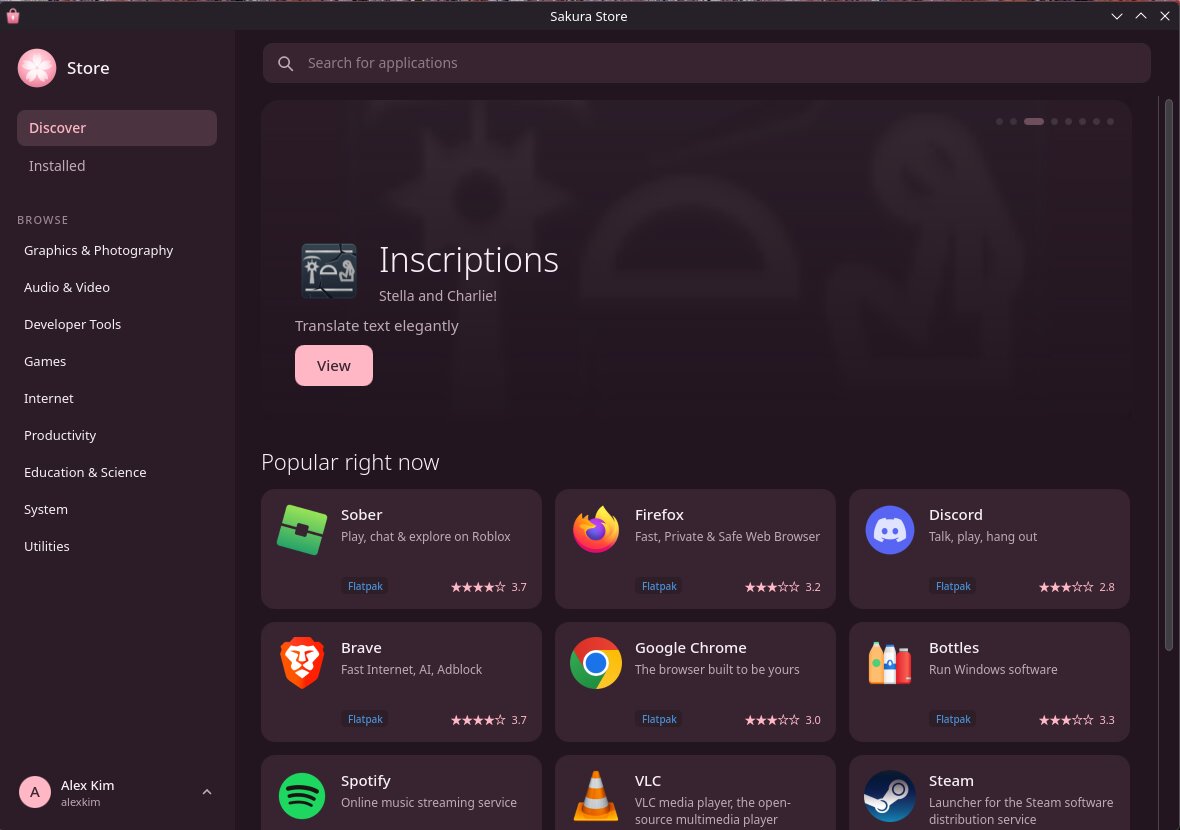
Finding and installing an application
Search at the top, or browse by category on the left.
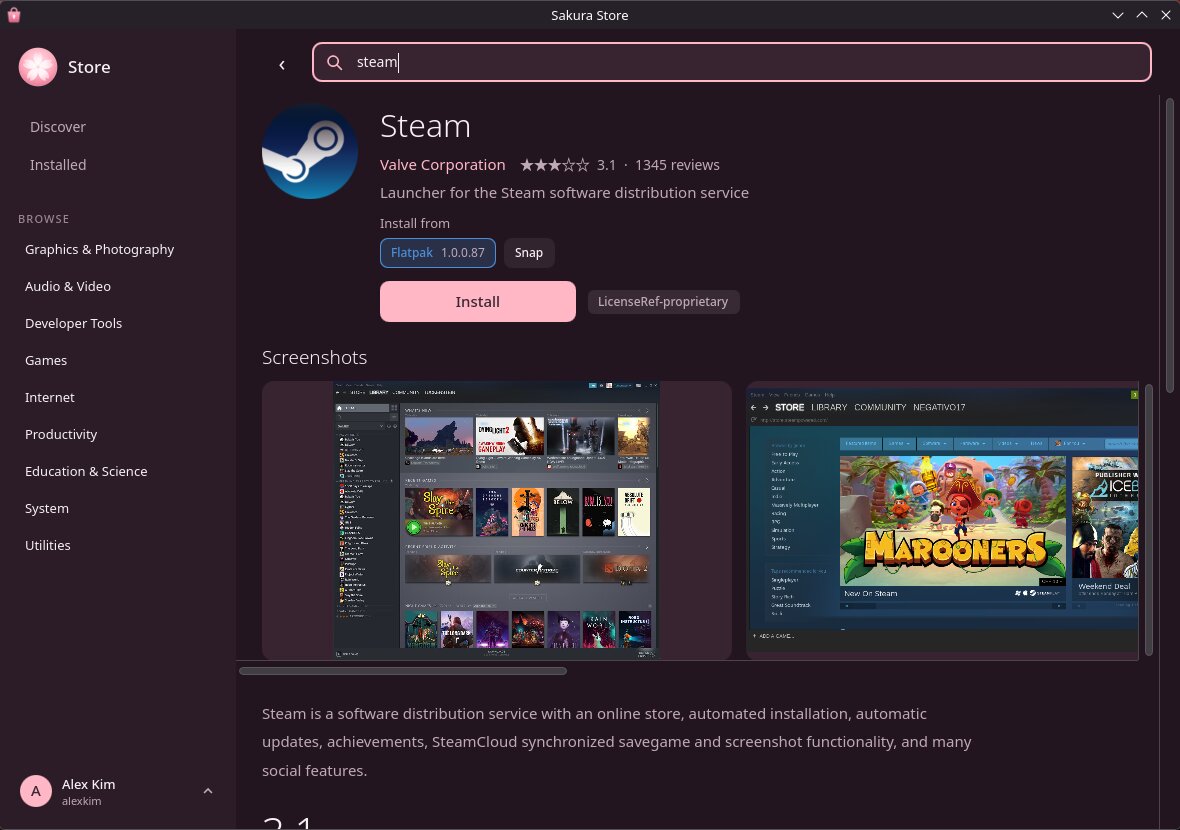
Open the application's page for its description, screenshots, reviews and license.
Under Install from, check which source is selected. The store picks one for you; see below.
Press Install, and type your password if asked.
You can start several installs without waiting. They take turns, one at a time, and also wait for the nightly update if it is running; the store shows each one as waiting, installing or failed.
Search results appear as each source answers, so applications from SakuraOS's own repositories usually show first, and the line under the results names any source still being asked. A source that does not answer within ten seconds is named at the top of the page rather than waited for.
Without an internet connection, the store says so at the top of every page and searches only SakuraOS's own repositories. When the connection comes back, it searches again by itself. On a network that needs you to sign in first, such as hotel Wi-Fi, it says that instead.
Where applications come from
| Source | What it is |
|---|---|
| SakuraOS | Packages from Arch Linux and SakuraOS. The smallest downloads, updated with the rest of the system. |
| Flatpak | Applications from Flathub. Each runs in a sandbox with its own copy of what it needs, so downloads are larger. Often the newest version. The page lists what each one is allowed to access. |
| Snap | Applications from Canonical's Snap Store. Some software is only published here. |
| AppImage | A single file you download from a website. See AppImages. |
| AUR | Build scripts written by Arch users, which nobody reviews. Off until you turn it on. See The AUR. |
When an application is available from more than one source, the store selects the one you already have installed. If you have none, it selects SakuraOS first, then Flatpak, Snap, AppImage and the AUR. To use a different one, click it before pressing Install.
The colored label on each application in the store names the source it would install from. In search results, a number after it, such as +2, means the application is available from that many other sources too; point at the number to see which.
Updates
Everything is updated automatically: SakuraOS packages with the nightly system update, and Flatpaks, Snaps and AppImages by the store shortly afterwards. Applications from the AUR are the exception; see updating AUR packages.
Removing an application
Open Installed, choose the application, and press Uninstall. Tick Also remove its settings and saved data to remove what it stored in your home folder as well.
The store will not remove something the system needs to start or to update itself. See Terminal Assist.
AppImages
An AppImage is a whole application in one file, downloaded from the
developer's website. Open the downloaded file and the store offers to install
it: the file is copied to the Applications folder in your home
folder and added to the application menu.
An AppImage is only as trustworthy as the website you downloaded it from, and the store says so before installing. Many AppImages cannot update themselves; the store tells you when that is the case.
Reviews
Ratings and reviews come from the Open Desktop Ratings Service, which GNOME Software and KDE Discover also use. To write one, open an application you have installed and choose Write a review. Reviews are public, under whatever name you choose.
App Sync
To set up a new computer with the same applications, click your name at the bottom left of the store and choose Save this machine's list…. On the new computer, choose Open a list… and pick that file. The list holds only application names: no settings and no files.
What the store does not show
The store lists applications that appear in the application menu. Command-line
tools and libraries are not listed. Install those in a terminal with
sudo pacman -S name.
Last checked against the SakuraOS release of 3 October 2026. If your system behaves differently from this page, the page is wrong: please report it.