After installing
Most of the setup a new computer needs is already done. This page lists what is ready, and the few things worth doing in your first hour.
Already set up
- Automatic updates, installed at 03:00 when the computer is on and plugged in, after a restore point. The computer never restarts by itself. See Updates.
- Restore points, taken before every update and before system programs are installed or removed, with a recovery screen in the boot menu. See Going back.
- The App Store, with Flatpak and Snap ready to use. See App Store.
- Your browser, pinned to the panel.
- Wi-Fi, Bluetooth and printing. Printers can be added in System Settings under Printers.
- Compressed memory, so the computer copes better when memory runs short. See Tuning.
Worth doing now
1. Install the latest updates
The image you installed from was made some time before you downloaded it. Open the Update Center from the application menu and press Install now rather than waiting for the night. A restore point is taken first.
2. Check your restore points
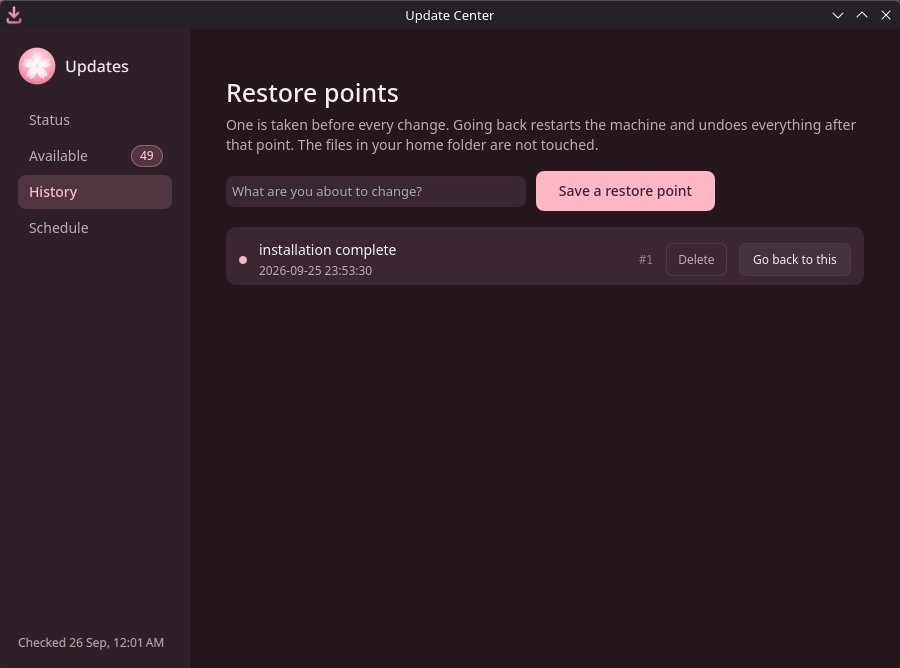
In the Update Center, open History. There should be a restore point named installation complete. It takes ten seconds, and it shows the safety net is working on your computer.
3. Set up a backup
Restore points undo changes to the system, but they are kept on the same disk, so they do not protect your files if the disk fails or the computer is lost. See Backups. This is the one thing SakuraOS cannot do for you, and the one most likely to matter.
4. Install your applications
Open the App Store. You can also bring the list of applications from another SakuraOS computer; see App Sync.
5. If you want Secure Boot
If you put the firmware into Setup Mode before installing, open the firmware settings now and make sure Secure Boot is on. See Secure Boot.
Where things are
| To | Open |
|---|---|
| Install or remove applications | App Store |
| See updates and restore points | Update Center |
| Change SakuraOS's own settings: updates, the AUR, Terminal Assist, Windows programs | System Settings → System → SakuraOS. See SakuraOS settings. |
| Change the look, wallpaper, accent color and clock | System Settings |
| Connect to a VPN | System Settings → Wi-Fi & Networking → + → Import VPN connection, with the OpenVPN (.ovpn) or WireGuard (.conf) file from your VPN provider. It then connects from the network icon in the panel. |
| Browse files and other drives | Dolphin, the file manager |
| Type commands | Konsole, the terminal |
If something is already wrong
See Troubleshooting. If the computer will not start, see Going back.
Last checked against the SakuraOS release of 3 October 2026. If your system behaves differently from this page, the page is wrong: please report it.