Installing beside Windows
SakuraOS can share a computer with Windows. When the computer starts, a menu lets you choose which one to use. This page covers the preparation in Windows, the install, and the few things that behave differently afterwards.
Two ways to do it
- Windows and SakuraOS on the same disk. You make room in Windows first, then install SakuraOS into that space. Follow this whole page.
- SakuraOS on a separate disk. Simpler and safer if you have a second disk. In the installer, choose that disk and Erase the whole disk; the Windows disk is not touched. To choose between them afterwards, use the computer's boot menu key (see Making a USB). SakuraOS's own menu only lists systems on the same disk as SakuraOS.
Before you start
Back up anything important in Windows first. Resizing a partition is normally safe, but a power cut or a mistake during it can cost you your files.
Get your BitLocker recovery key
Many Windows computers encrypt their disk with BitLocker, also called Device Encryption. Changing firmware settings, including Secure Boot, can make Windows ask for its 48-digit recovery key on the next start. Without the key you cannot get into Windows.
If your Windows account is a Microsoft account, the key is usually saved at account.microsoft.com/devices/recoverykey. You can also save it from Windows: search the Start menu for Manage BitLocker and choose Back up your recovery key. Keep it somewhere other than this computer, such as printed out or on your phone.
Turn off Fast Startup
Fast Startup makes Windows hibernate instead of shutting down, which leaves its disk locked. Other systems, including SakuraOS, cannot then safely use it.
Open Control Panel → Hardware and Sound → Power Options.
Choose Choose what the power buttons do, then Change settings that are currently unavailable.
Untick Turn on fast startup and save.
Make room for SakuraOS
SakuraOS needs at least 25 GB of unallocated space: space that no partition uses. 64 GB or more is better. Windows can shrink its own partition to make it:
Right-click the Start button and choose Disk Management.
Right-click the (C:) partition and choose Shrink Volume.
Enter how much to free, in MB. For 64 GB, enter
65536. Choose Shrink.A new black bar labeled Unallocated appears. Leave it as it is: do not create a partition in it. SakuraOS installs there.
If Windows will not shrink as far as you want, it is usually because of files it cannot move. Freeing space on C: and running Disk Cleanup can help.
Check the EFI system partition
SakuraOS keeps its boot files on the same small partition Windows starts from, the EFI system partition, and needs 180 MB free there. In Disk Management it is the partition labeled EFI System Partition, usually 100 MB or 260 MB.
- At 260 MB or more, there is normally room.
- At 100 MB, the size Windows creates when it installs itself on a blank disk, there is not. Install SakuraOS on a second disk instead.
The installer checks this before it changes anything. If there is not enough room, the install stops with a message saying so, and the disk is left as it was.
Install
Start from the SakuraOS USB stick. See Making a USB. If the stick will not start because of Secure Boot, read the note there before turning Secure Boot off.
Go through the installer as described in Installing.
-
On the Disk screen, choose the disk that has Windows on it, then Install alongside what is here. It should say how much unallocated space it will use, and that it is keeping Windows.
If the option is grayed out, the screen says why: either there is less than 25 GB unallocated, or nothing on the disk starts in UEFI mode.
On the summary, check that it does not say the disk will be erased. Then install.
What the installer changes on the disk
- It creates one new partition in the unallocated space. Your Windows partitions are not resized, moved or changed.
- It shares Windows' existing EFI system partition, adding a folder named
EFI/sakura. Windows' own boot files stay where they are. - It adds a startup entry named SakuraOS to the firmware, first in the order.
- It leaves Windows' copy of its boot manager at the firmware's fallback location,
EFI/BOOT/BOOTX64.EFI, alone. If the computer ever loses its startup entries, it starts Windows from there; to get SakuraOS back, see The computer starts straight into Windows.
Choosing a system when the computer starts
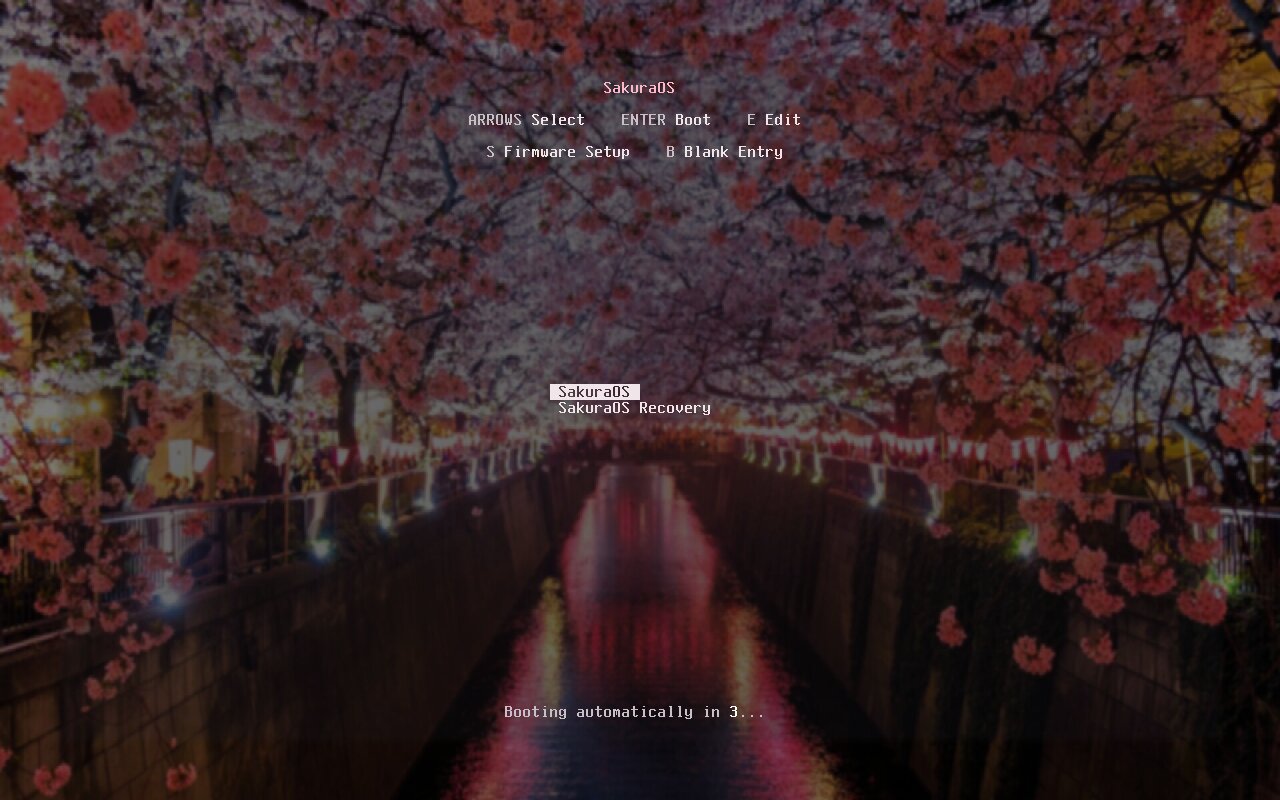
The SakuraOS menu shows for 3 seconds and then starts SakuraOS. To start Windows instead, press ↓ to stop the countdown, select Windows Boot Manager, and press Enter.
After installing
The computer starts straight into Windows
Large Windows updates sometimes put Windows first in the firmware's startup order again. Open the firmware settings, find the boot order, and move SakuraOS to the top. To start SakuraOS once without changing anything, use the boot menu key instead.
If SakuraOS is missing from the list altogether, the firmware has lost its startup entries. Start from the SakuraOS USB stick, choose Try SakuraOS, open a terminal, and run:
sudo efibootmgr --create --disk /dev/nvme0n1 --part 1 --loader '\EFI\sakura\limine.efi' --label SakuraOS --unicode
Replace /dev/nvme0n1 with your disk and 1 with the number
of its EFI system partition. lsblk -o NAME,PARTTYPENAME shows both:
the partition marked EFI System, such as
nvme0n1p1, is disk nvme0n1, partition 1.
The clock in Windows is wrong by a few hours
Windows and SakuraOS store the time in the computer's clock differently: Windows as local time, SakuraOS as UTC. After using one, the other can be off by your time zone's difference from UTC. The simplest fix is to tell Windows to use UTC as well. In Windows, open Command Prompt as administrator and run:
reg add "HKEY_LOCAL_MACHINE\System\CurrentControlSet\Control\TimeZoneInformation" /v RealTimeIsUniversal /d 1 /t REG_DWORD /fThen restart Windows and let it set its clock from the internet once.
Opening your Windows files from SakuraOS
The Windows partition appears in the file manager's sidebar. Click it to open it, and type your password when asked. If Windows was not fully shut down, for example because Fast Startup is still on, it may open read-only or not at all. A Windows partition encrypted with BitLocker cannot be read without its recovery key.
Removing one of them later
Last checked against the SakuraOS release of 3 October 2026. If your system behaves differently from this page, the page is wrong: please report it.